Editor
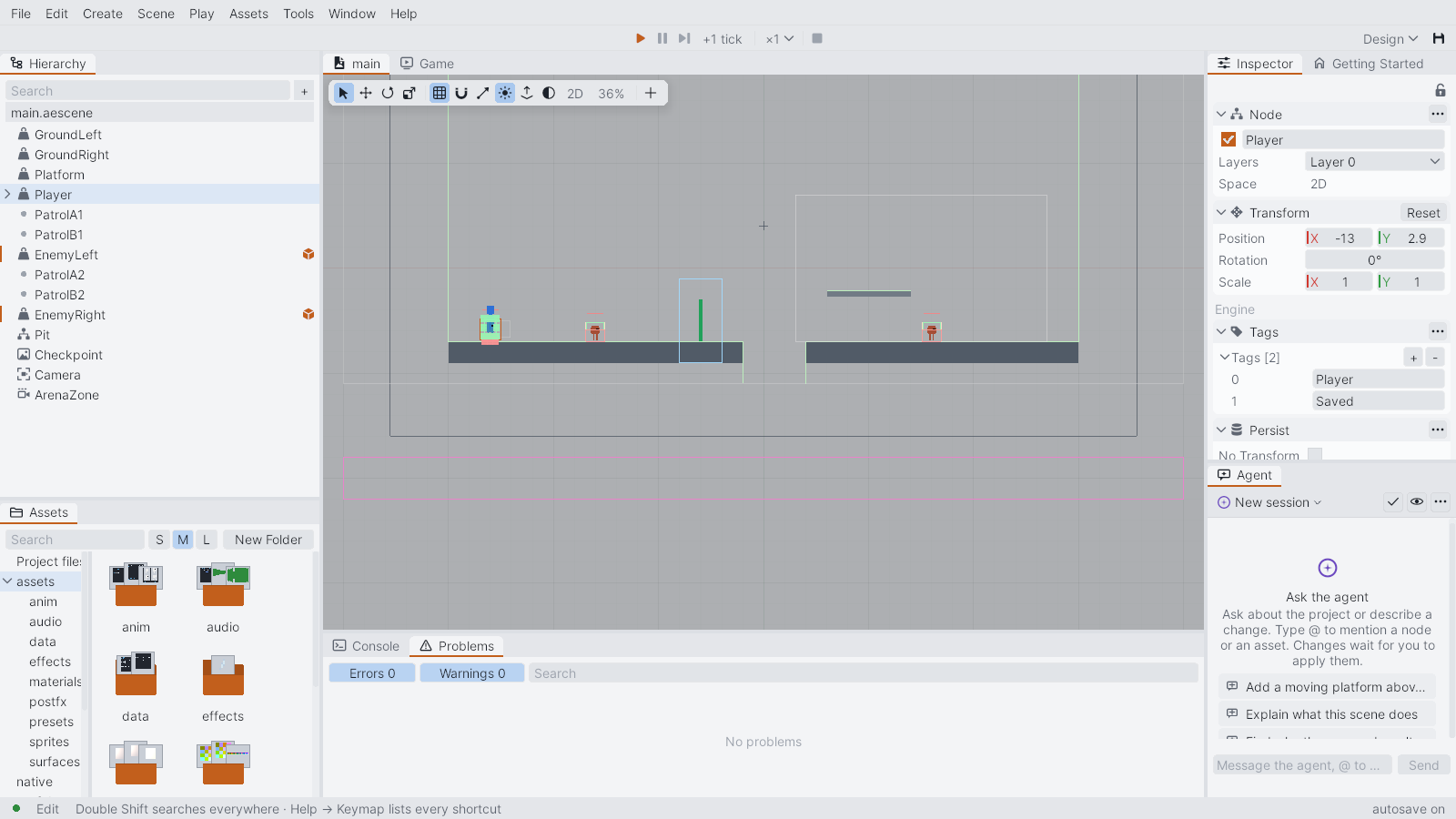
The editor is where you build scenes, write scripts and run the game. This page tours its parts: workspaces, the theme, editing many nodes, Play and the tools that watch a running game.
On this page
Workspaces and layout
A workspace is a named layout: which panels are docked where and whether the toolbar is shown. The editor ships with four.

| Workspace | For | Default panels |
|---|---|---|
| Design | building scenes | Scene and Game in the center, Hierarchy and Assets on the left, Inspector on the right |
| Programming | writing scripts | Scripts open in the center beside Docs and Game. Problems, Console and Find are below. Agent and Watch are on the right. Play controls are visible by default |
| Art | sprites and levels | Scene and Game in the center, Inspector on the right, Animation and Animator below |
| Audio | sound work | Game and Scene in the center, Assets on the left, Inspector on the right, Mixer and Console below |
- Switch with the selector at the right of the toolbar, or with
Ctrl+1…Ctrl+4from any panel, the code editor included. - Rearrange panels freely. Every workspace remembers its own layout. Documents, the selection and Play are shared between workspaces.
- Window → Save as Workspace… keeps the current layout under a new name. You can rename and delete your own workspaces. The built-in ones can only be reset, with Window → Reset Layout.
- Modules can add workspaces of their own.
Maximize and full screen
Shift+Space, a double click on a tab or Maximize in the tab menu fills the window with one panel. Repeat to bring the layout back.F11runs the game in full screen, with all input going to the game.Shift+Escreturns input to the editor and leaves full screen while the game keeps running. Stop leaves it too.- Zen Mode in the command palette gives the active script the whole window.
Undo History
Window → Undo History lists the edits of the active scene, one row per action. Click a row to undo or redo up to it. During Play the list shows the Play history, which is dropped on Stop.
Theme
The editor has three themes: System, Dark and Light. System, the default, follows the light or dark look of the OS; when the OS does not say, the editor is dark.
- Pick a theme in Window → Theme, in the command palette (Theme: System, Theme: Dark, Theme: Light) or with the Theme box at the bottom of the launcher. It changes at once, without a restart.
- The Scene View background and grid follow the editor theme; changing the theme does not change the scene or the running game.
- The theme is your choice, not the project's: it applies to every project and to the launcher.
AEGO_EDITOR_THEME=system|dark|lightoverrides it for one run.
Projects, scenes and previews
The launcher has three tabs:
- Recent shows your projects with a picture of their startup scene.
- New Project shows the templates with a preview and the files they contain. Pick a name, a folder, a module path and the workspace the editor opens with.
- Examples copies one of the engine examples into a folder of your choice.
The Scenes panel lists every scene of the project with a preview. The startup scene carries a play mark. Right-click a scene to open it, make it the startup scene, rename, duplicate or delete it, or show it in Assets.
Assets shows a preview for every file: textures on a checkerboard, scenes and prefabs as small renders, scripts with their first lines and data assets with their type. The S M L buttons change the tile size. Previews are rebuilt when the file or anything it uses changes.
Editing many nodes
Select several nodes and the Inspector shows the components they share. A field whose values differ shows "—"; hover its name to see the values. A change goes to every selected node as one Undo step. Clicking, typing or pasting on more than ten nodes asks first.
Component menus copy and paste values, and the Node card copies all components at once. Pasting onto a node without the component adds it.
Presets
Save as Preset… in a component or script menu writes assets/presets/<name>.aepreset. Apply Preset lists the presets of that type and applies one to every selected node.
Reset
Right-click a field and pick Reset to Default, or Reset to Prefab Value on a prefab override. Data assets with a base offer Reset to Base Value.
Lock
The padlock at the top of the Inspector keeps it on the current nodes while you select others.
Favorites
Add assets from their menu, nodes from the Hierarchy menu and actions with Ctrl+D in the command palette. Favorites show in the Favorites panel and first in the palette.
Selection history
Alt+← and Alt+→ step through earlier selections, switching scenes when needed.
Isolation
Shift+H shows only the selected nodes and their children in the Scene View. Press it again, or pick Show All, to leave.
Keeping Play changes
When you stop Play after changing values in the Inspector or with a gizmo, the editor lists those changes, already checked. Each one shows the value you set, even if the game moved the node afterwards. Stopping without edits shows nothing.
- Show all differences adds everything else the game changed, such as positions and counters. These rows start unchecked and are marked "from gameplay". The editor remembers this choice.
- Apply to scene copies the checked values into the scene as one Undo step.
- Play → Never Show Play Changes turns the list off; Always Show Play Changes shows it after every stop.
Assets and project health
Find References
Find References (Shift+F12 or the asset menu) lists every scene, prefab and data asset, and the project file, that use an asset, with the node, component and field. Click a line to open it.
- Replace with… points every reference at another asset of the same kind.
- Clear References sets them to None.
Open documents change through Undo. Files that are not open are rewritten on disk, and their originals are kept in .aego/recovery/.
Safe Delete
Deleting an asset that is still used lists what uses it. Show the references to replace them first, delete anyway, which leaves the references missing, or cancel.
Missing References
Missing References lists references to assets that no longer exist, grouped by asset, with the path each one had. Use the suggested asset with the same name, pick another, or clear the reference. Missing node references inside scenes and prefabs can be selected or cleared. References that scripts make by a string path are not found.
Batch Rename
Batch Rename works on several assets (asset menu) or nodes (Hierarchy menu). It takes a pattern with {name}, {n}, {n:03}, {parent} and {ext}, find and replace (optionally with a regular expression) and case. The preview marks names that clash. Renamed assets keep their ids, so nothing that uses them breaks.
Diff
Compare with HEAD in the menu of a scene, prefab or data asset shows what changed since the last commit, or since an earlier commit you pick. It lists added, removed, moved and renamed nodes, components and fields. Click a node change to select the node. The project must be in a git repository.
Tasks
Imports, previews, reference updates, diffs and checks run in the background. The status bar shows how many are running. Click it for the Tasks panel, where you can cancel a task and read the error of a failed one.
Project Health
Project Health checks import errors, problems, missing references, unused assets, scenes nothing loads, names that differ only in case, textures larger than 4096 px, scenes without a camera and, when project.aego has an art palette, pixel-art sprites drawn in other colors. Every scene, prefab and script, the startup scene and assets/presets count as used. The panel also shows how long the current scene took to open, its node count and how many of its assets are missing.
Scripts during Play

With File → Autosave Scripts on, the default, a script is saved a second after you stop typing and when the editor loses focus. Each save that compiles is loaded into the running game at the next frame. A save that does not compile leaves the running code as it was.
- While a script package has errors, a banner over the Scene View and the Game View says how many and where. Click it to open the first error. Play cannot start again until the scripts compile.
- The Console reports each reload, with warnings about fields that were reset and scripts that were removed.
- During Play the Profiler shows coroutines and signal emits, and a table of scripts with their calls, time and faults.
Hot reload explains what survives a reload and how to restart coroutines.
Rewinding Play

While a game runs in the editor, every frame is recorded: its time step, time scale, pause and the input the game saw. The bar at the bottom of the Game View shows the recorded frames.
- Drag the bar to scrub through them. The Game View follows the handle while you drag.
Ctrl+LeftandCtrl+Rightmove one frame back or forward.- After a rewind the game waits paused at that frame. Play or Step starts a new timeline from there and forgets the frames after it.
The editor keeps copies of the game along the timeline, so rewinding is quick even in long sessions. When a module keeps state that cannot be copied, the bar says "keyframes off" with its name. Rewinding then restarts the game from the scene as it was when Play started, and dragging back moves the cursor and rewinds when you release.
While the editor holds the game paused, nothing runs and nothing is recorded. A pause the game makes itself, such as a pause menu, keeps running and recording. Saves the game makes during playback are not written to disk again.
What ends the recording
- An edit in the running scene ends the recording at the frame you are on. Earlier frames can still be rewound to. An edit made before the first frame becomes the new start.
- An asset or script reload, a tuned data asset or a changed setting drops the whole recording, because a replay would run with the new values.
- When the history reaches its memory limit, the oldest part is dropped and the bar starts later.
- A module that declares itself non-deterministic turns rewinding off, and the bar names it.
Selections, watches and the Event Monitor follow the rewound game. Node ids stay the same, and events from playback are hidden unless Show replayed is on in the Event Monitor.
Event Monitor
Window → Event Monitor lists what happened in the running game: script signals, collisions and triggers, script faults, nodes created and destroyed, scene changes, audio and gameplay events such as damage, deaths and pickups.
- Every row carries the frame and the fixed step, the same numbers as the Profiler. Clicking a frame in the Profiler's strip filters the monitor to it.
- Click a row to select its node.
- Engine events are listed for nodes with a handler. With Selected nodes on, every event of the selected nodes is listed.
- Export writes the filtered rows to
.aego/user/events.log. - Break on pauses Play when an event of a listed kind matches the text after it, for example
OnTriggerEnter. The pause lands on the fixed step of the event.
Watch
Window → Watch shows live values such as Player.PlayerController.Velocity, Enemy.EnemyAI.Speed or time.Tick.
- A row is a node path from the scene root, then a component or script name, then a field.
.x .y .z .wpick one part of a vector. Ctrl+Alt+Win the Inspector adds the field under the mouse.- A row with a comparison, such as
Player.Health.Hits >= 3, pauses Play on the fixed step it becomes true. - HUD shows the rows over the Game View.
Debug Draw
Window → Debug Draw lists the debug channels of the running game with their counts. Click a channel to hide or show it, or use a preset. Physics channels follow the Physics menu.
Crash Reports
When a panel, an extension, a native script binding or the running game fails, the editor saves the open scenes and scripts to recovery and writes a report to .aego/crash/<time>/. The report holds the versions, OS, GPU and modules, the stacks, the last frames as a trace you can open in ui.perfetto.dev, recent events, the play scene and the log. Paths under your home folder are written as ~.
engine { crashScene=false }in the project leaves the play scene out of the report.engine { spikeMs=50 }writes the same report, marked spike, for frames slower than 50 ms.- Window → Crash Reports lists the reports. Click one to open the script line or copy the folder.
- Add Component and Create One palette adds components and creates nodes.
- The Agent panel The Agent tab, next to the Inspector, talks to Claude Code about the open project.
- Icon catalog This catalog shows the icon sources available to this documentation build,